
Joystick Test – Test Your Joystick Online Free
Run a joystick test online — detect stick drift, deadzone issues & button faults on PS4, PS5, Xbox & PC joysticks. Free, no download, real-time results.
Left Stick
Right Stick
How To Use the Joystick Test
Simple 3-step process to test your Joystick.

Connect
Connect your gamepad via USB or Bluetooth, then press any button to activate it.

Move
Move each joystick to see real-time response and axis tracking in the tester.

Check for Drift
Leave the joystick centered and monitor for unwanted movement to detect joystick drift.
joystick Deadzone Test
A deadzone is the small area of thumbstick movement that does not register input, and it matters because it helps prevent unwanted movement, improves control accuracy, and makes gameplay feel smoother.
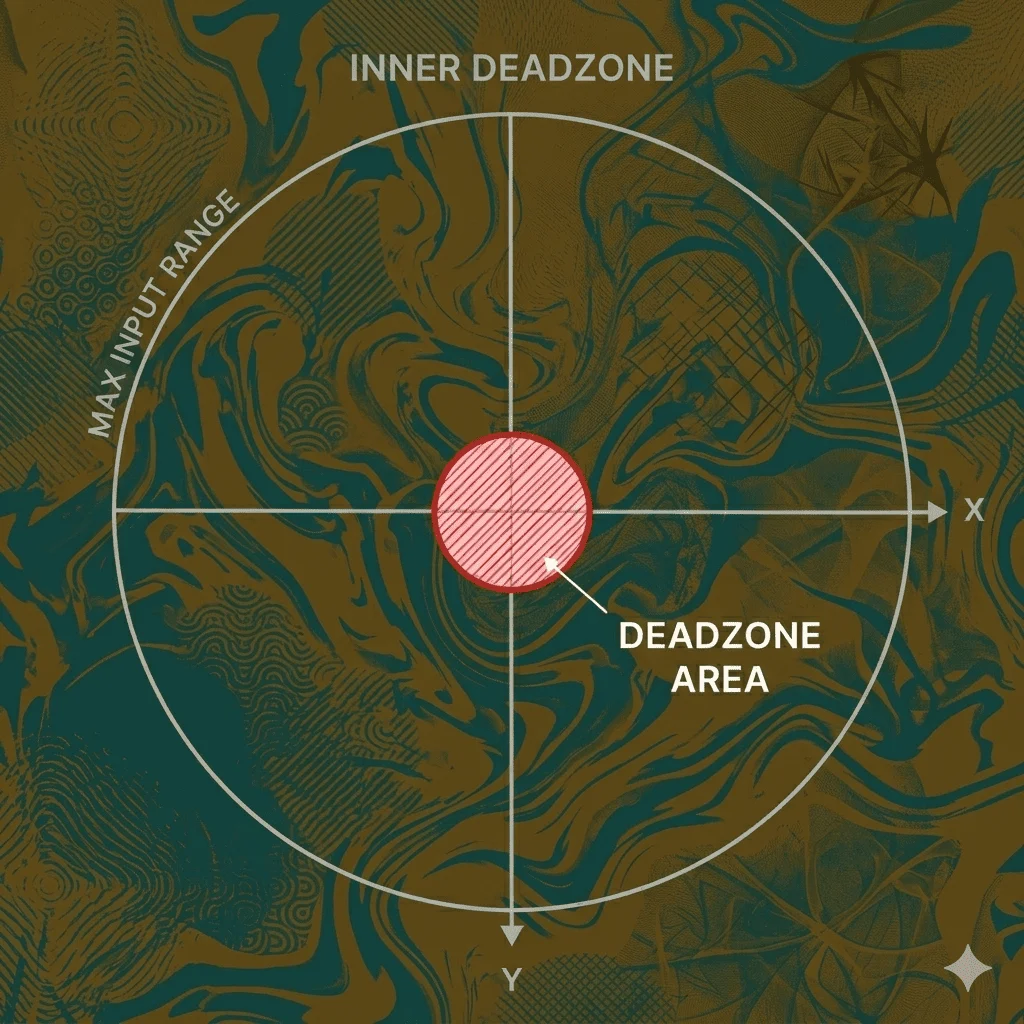
Inner DeadZone
The inner deadzone is the small area near the center where joystick movement is ignored.
How to test?
1. Center the Joystick
Keep the joystick at its normal resting position.
2. Move It Slowly
Push the joystick very gently away from the center.
3. Watch for First Input
Note the point at which movement first registers.
4. Measure the Deadzone
The distance from the center to that first registered input is the inner deadzone.
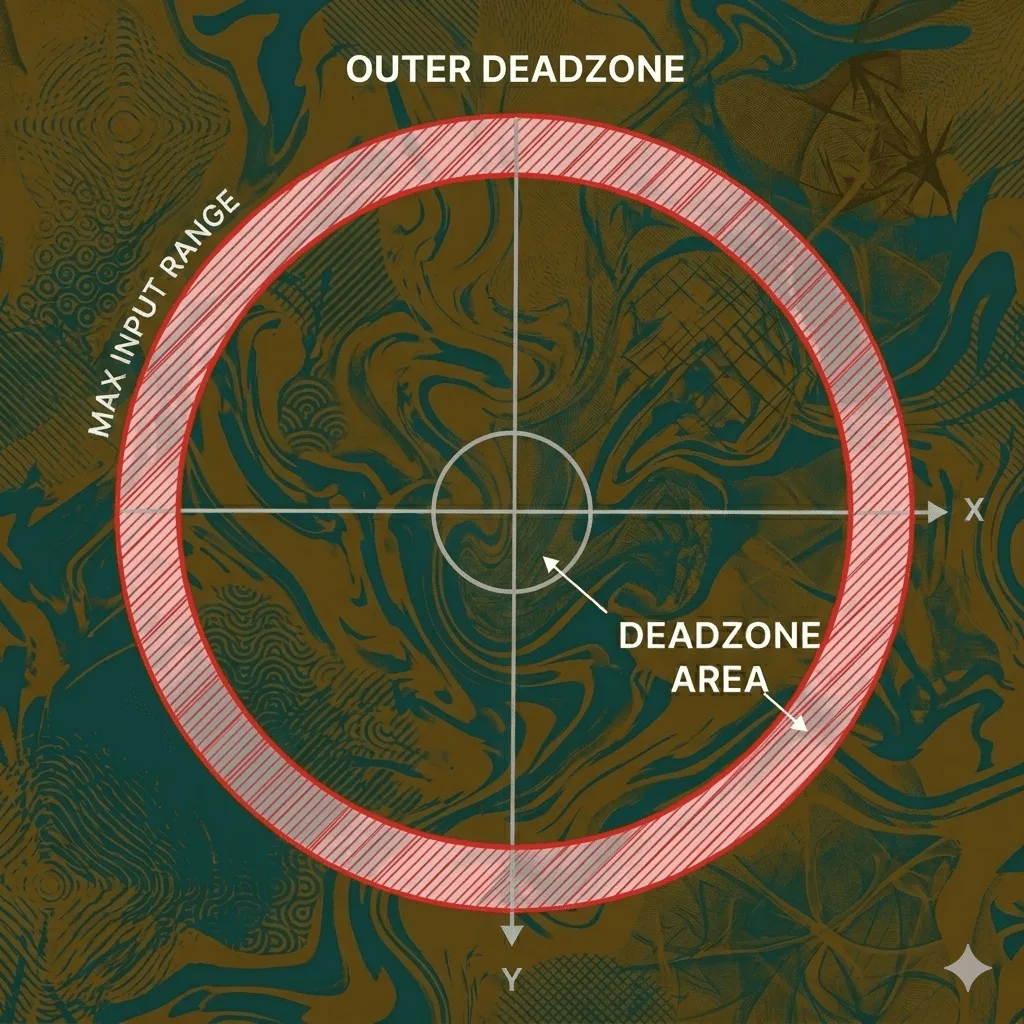
Outer DeadZone
The outer deadzone is the area near the edge where the joystick reports maximum input before full physical movement.
How to Test?
1. Move the Joystick Outward
Push the joystick slowly from the center toward the outer edge.
2. Watch the Input Level
Check when the tester shows the joystick has reached maximum input.
3. Keep Pushing Further
See whether the stick can still move physically after max input is already reached.
4. Measure the Outer Deadzone
The extra movement between maximum input and the physical edge is the outer deadzone.
DeadZone Concepts
Advanced Joystick Tests
Circle Error Test
What Is It?
The Circle Error Test checks how accurately your joystick draws a perfect circle when you move it all the way around the edge.
Why Does It Matter? A healthy joystick should trace a near-perfect circle. If the shape comes out as an oval, a square-like shape, or an uneven loop, your joystick has a circle error. This means your diagonal movements are weaker or stronger than your up/down/left/right movements.
How to Do It?
- Open the advanced joystick Test on your Gamepad Tester tool
- Slowly rotate your joystick in a full circle, staying at the maximum edge
- Watch the shape drawn on the screen
- A perfect circle = healthy stick. A distorted shape = circle error detected
What Causes It?
- Worn-out joystick hardware
- Manufacturing inconsistencies
- Damaged thumbstick module
Simple Fix? If the error is small, it may not affect gameplay much. If the shape is heavily distorted, consider recalibrating your controller or replacing the thumbstick.
Central Accuracy Test
What Is It? The Central Accuracy Test checks if your joystick returns exactly to the center point when you let it go. It measures how accurately the stick snaps back to its neutral position after being moved.
Why Does It Matter? A healthy joystick should always return to the exact center when released. If the stick rests slightly off-center, your character or camera may drift on its own during gameplay. Even a tiny offset from the center can cause unwanted movement in your game.
How to Do It?
- Open this Advanced Test on your Gamepad Tester tool
- Push your joystick in any direction and then release it
- Watch where the pointer settles on the screen
- If it returns to the exact center = healthy stick. If it stops slightly off-center = central accuracy issue detected
What Causes It?
- Worn-out spring mechanism inside the joystick
- Dust or dirt buildup around the stick base
- Physical damage to the thumbstick module
- Natural wear from long-term use
Simple Fix? If the offset is very small, recalibrating your controller may solve the issue. If the stick consistently fails to return to center, cleaning the joystick base or replacing the thumbstick module is recommended.es need a thumbstick replacement.
Stick Tremor Test
What Is It?
The Stick Tremor Test detects tiny, rapid, unintended micro-movements your joystick makes even when you are holding it completely still.
Why Does It Matter?
Even if you hold your joystick perfectly still, a damaged or low-quality stick will produce tiny shakes or vibrations in its signal. In-game, this shows up as a slightly shaky aim or unstable movement — especially noticeable in FPS games or precision-based games.
How to Do It?
- Hold your joystick at any position without moving it
- Keep your hand as steady as possible
- Watch the tremor graph on the tool
- A flat line = great. A noisy, shaky line = tremor detected
What Causes It?
- Worn-out potentiometers inside the stick
- Electrical interference in the controller
- Hardware aging in older controllers
Simple Fix?
Tremor issues are mostly hardware-related. Light tremor can sometimes be reduced with deadzone adjustments in your game settings. A heavy tremor usually means the joystick hardware needs to be replaced.
Skipping Zone Test
What Is It?
The Skipping Zone Test identifies dead spots or gaps in your joystick's movement path — areas where the stick jumps from one value to another instead of moving smoothly.
Why Does It Matter?
Your joystick should produce a perfectly smooth, continuous signal as you move it. If it skips over certain values — jumping from 30% to 50% without passing through 40%, for example — your movement will feel choppy and unresponsive in that zone.
How to Do It?
- Move your joystick very slowly from the center to the outer edge in one direction
- Watch the value graph on the tool
- A smooth, straight line = no skipping. Sudden jumps = skipping zones detected
What Causes It?
- Dirty or damaged potentiometers
- Physical debris inside the joystick module
- Worn conductive tracks inside the hardware
Simple Fix?
Cleaning the inside of the joystick with contact cleaner spray often fixes minor skipping. Heavy skipping requires a hardware replacement.
Diagonal Accuracy Test
What Is It?
The Diagonal Accuracy Test specifically measures how accurately your joystick registers diagonal inputs (45°, 135°, 225°, 315°) compared to straight directions.
Why Does It Matter?
Many joysticks are accurately calibrated for up, down, left, and right — but diagonals are where cheap or worn-out sticks begin to fail. In fighting games, sports games, and shooters, diagonal movement is critical.
How to Do It?
- Push your joystick precisely to each diagonal corner
- The tool shows the exact angle being registered
- A perfect diagonal = 45°. Anything off by more than 3–5° means diagonal inaccuracy
What Causes It?
- Uneven wear on the joystick gate (the plastic housing around the stick)
- Circle error issues that also affect diagonals
- Manufacturing defects
Simple Fix?
If your diagonal accuracy is slightly off, try recalibrating your controller through your console or PC settings — this often realigns the diagonal registration. If the error is large, the joystick gate (the plastic ring around your stick) may be unevenly worn. Replacing the thumbstick module is the most reliable fix for heavy diagonal inaccuracy. For a temporary workaround, some games allow custom stick response curves that can compensate for minor diagonal errors.
Axis Consistency Test
What Is It?
The Axis Consistency Test checks whether your X-axis and Y-axis produce equal, consistent output when pushed to the same distance.
Why Does It Matter?
If your X-axis registers 80% but your Y-axis only registers 65% at the same physical distance, your movement will feel unbalanced. Horizontal and vertical movements won't feel equal, which heavily impacts aiming and navigation.
How to Do It?
- Push your joystick straight up to maximum — note the Y-axis value
- Push it straight to maximum — note the X-axis value
- Both values should be very close (within 2–3%)
- A big difference = axis inconsistency
What Causes It?
- Uneven wear on the left or right joystick over time
- One axis potentiometer is degrading faster than the other
- Physical damage or pressure applied unevenly to the stick
- Manufacturing defects where X and Y sensors were not calibrated equally from the factory
- Heavy gaming sessions that wear down one axis more than the other
Simple Fix?
Start with controller recalibration through your system settings — this is the easiest first step and often brings both axes back into balance. If recalibration doesn't help, cleaning the joystick module with contact cleaner spray can restore a weak axis. For a large gap between X and Y values, the potentiometer on the weaker axis is likely worn out and needs a full thumbstick replacement. Since your tool tests both left and right joysticks, always run this test on both sticks to see which one has the consistency issue.
More Controller Tests
Full Controller Test
If you want to test everything at once — buttons, joysticks, triggers, bumpers, D-pad, and vibration — our Full Controller Test is the right place to start.
Controller Input Test
This test helps you detect exactly which inputs, including buttons, triggers, and axes, are working correctly and which ones are failing in real time.
Xbox Controller Test
Our dedicated Xbox Controller Test is built specifically for Xbox One, Xbox Series X, and Xbox Series S controllers, covering every button, trigger, and joystick.