

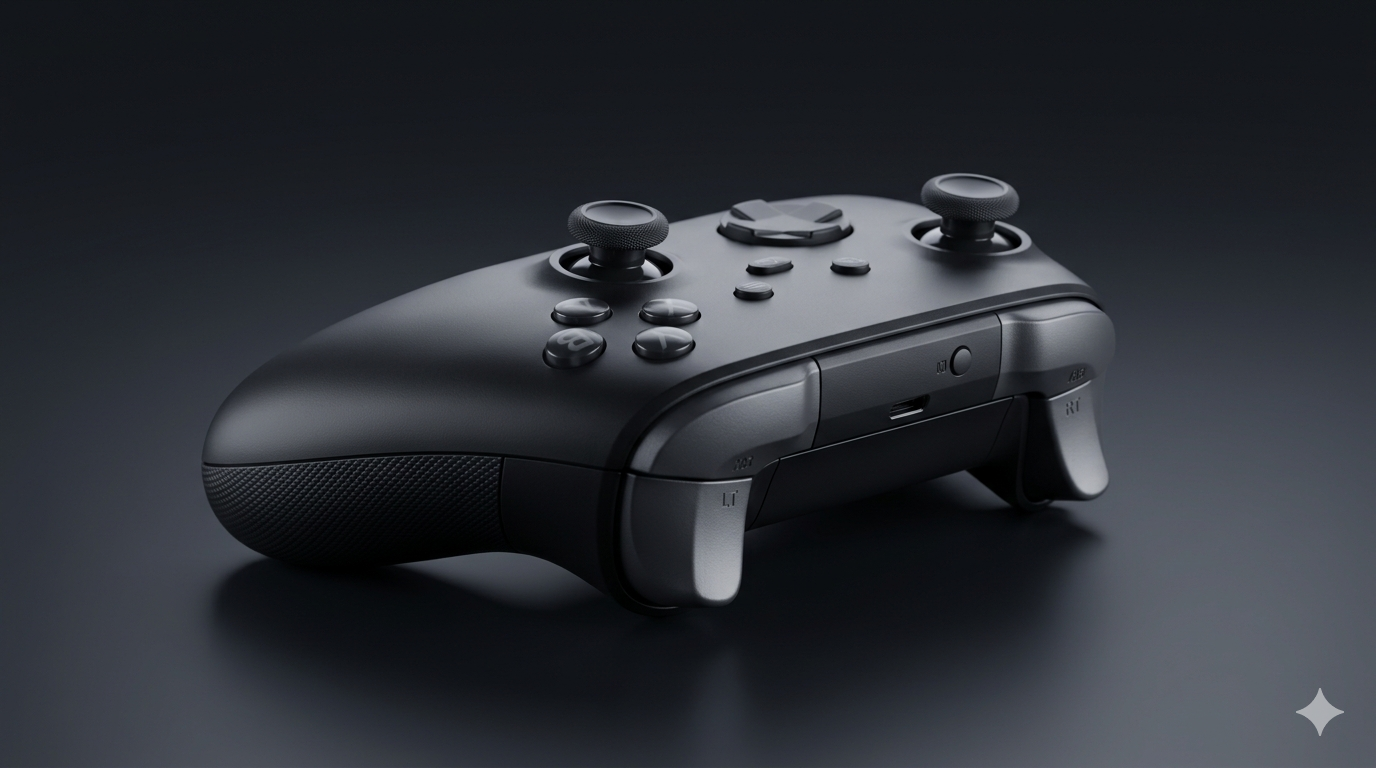
Test Xbox controller online for free — check Xbox One & Series X/S sticks, buttons, and triggers instantly in your browser. No downloads needed.
How to Test Your Xbox Controller Online (Xbox One, Series X/S) – Free Step-by-Step Guide
If your Xbox controller feels off — sticks drifting, buttons not registering, triggers acting up — the fastest way to find out exactly what’s wrong is to run it through an online controller tester. No downloads, no software installs, just your browser and your gamepad.
This guide walks you through testing your Xbox One, Xbox Series X, and Xbox Series S controllers online using MyGamepadTest.com, so you can confirm every stick, button, trigger, and bumper is working as it should.
Why Test Your Xbox Controller?
A quick online test can save you time, money, and frustration. Here’s when it’s worth doing:
- Stick drift detection – catch drift early before it ruins your aim in shooters or racing games
- Pre-purchase checks – verify a used Xbox controller works fully before you buy it
- Pre-sale checks – confirm everything works before listing your controller for sale
- Warranty troubleshooting – get proof of a hardware fault before contacting Xbox support
- General diagnostics – figure out why your controller feels “laggy” or unresponsive
What You’ll Need:
- An Xbox controller (Xbox One, Xbox Series X/S, or Xbox Elite)
- A computer or laptop with a modern browser (Chrome, Edge, or Firefox work best)
- A USB-C/Micro-USB cable, or Bluetooth, or an Xbox Wireless Adapter for PC
How to Connect Your Xbox Controller to Your PC
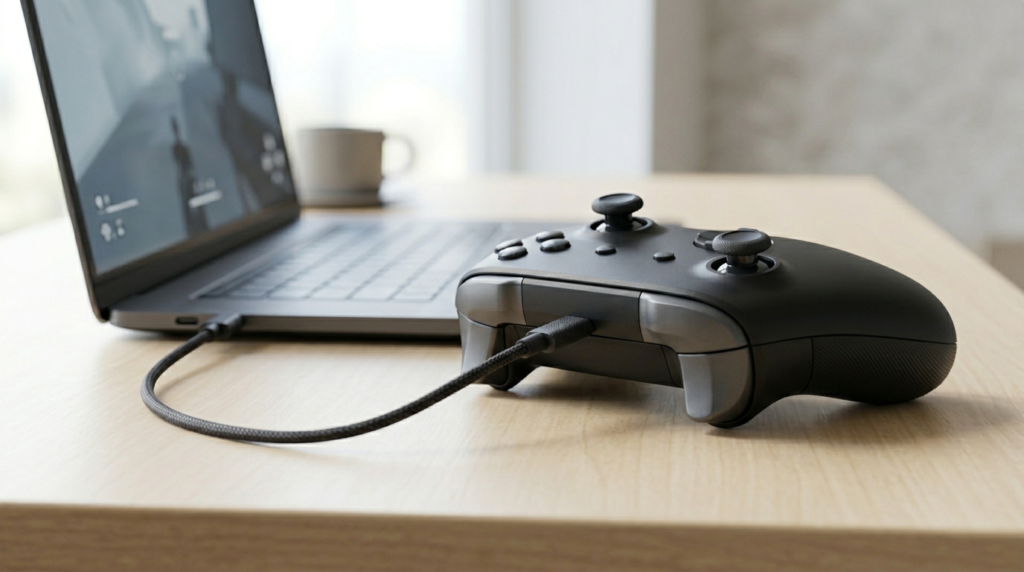
USB Cable (Most Reliable):
Plug your controller directly into a USB port using a USB-C cable (Series X/S) or Micro-USB cable (Xbox One). This is the most stable connection for testing, since it eliminates any wireless interference as a variable.
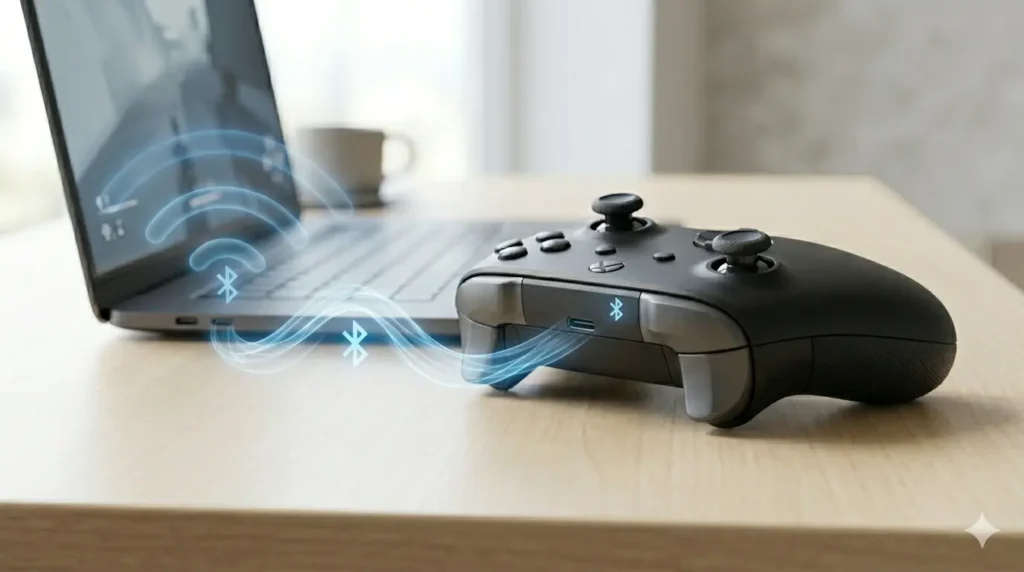
Bluetooth (Xbox Series X/S only):
Hold the Xbox button to turn on the controller, then hold the Pair button on top until the Xbox logo flashes rapidly. Go to your computer’s Bluetooth settings, select “Add device,” and pair with the controller.
Xbox Wireless Adapter (Xbox One):
If you have the official Xbox Wireless Adapter for Windows, plug it into a USB port, then press the Xbox button and the small sync button on the controller to connect.
Step-by-Step: How to Test Xbox Controller Online
- Connect your controller to your PC using one of the methods above.
- Open your browser and go to MyGamepadTest.com.
- Press any button on your controller — most browsers require a button press before they’ll detect a gamepad.
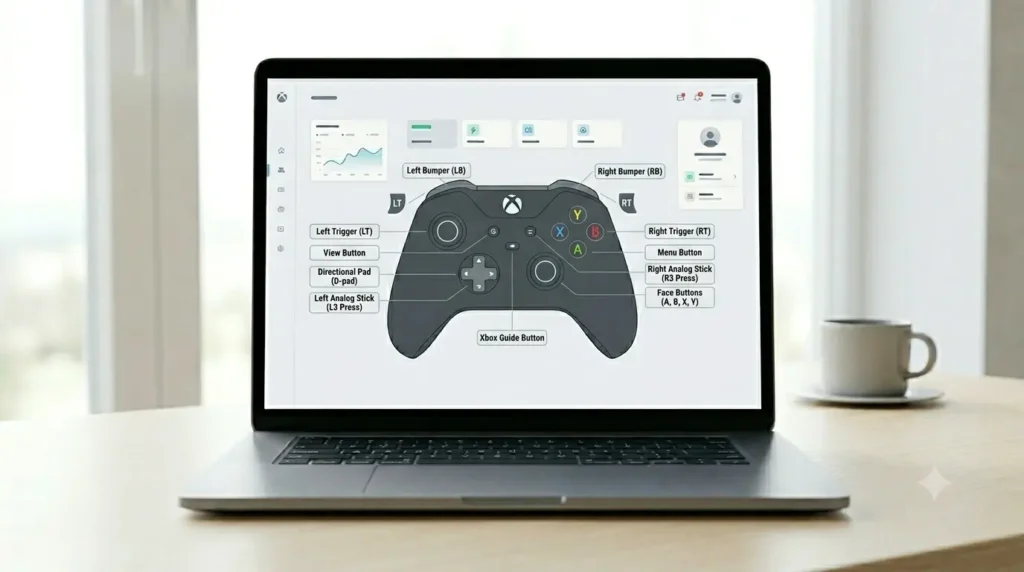
- The site should automatically recognize your controller and display a visual diagram of an Xbox gamepad.
- Move and press every input on your controller and watch the on-screen diagram respond in real time.
If your controller isn’t detected, check the troubleshooting section below.
Testing Each Component
Analog Sticks (Left & Right):
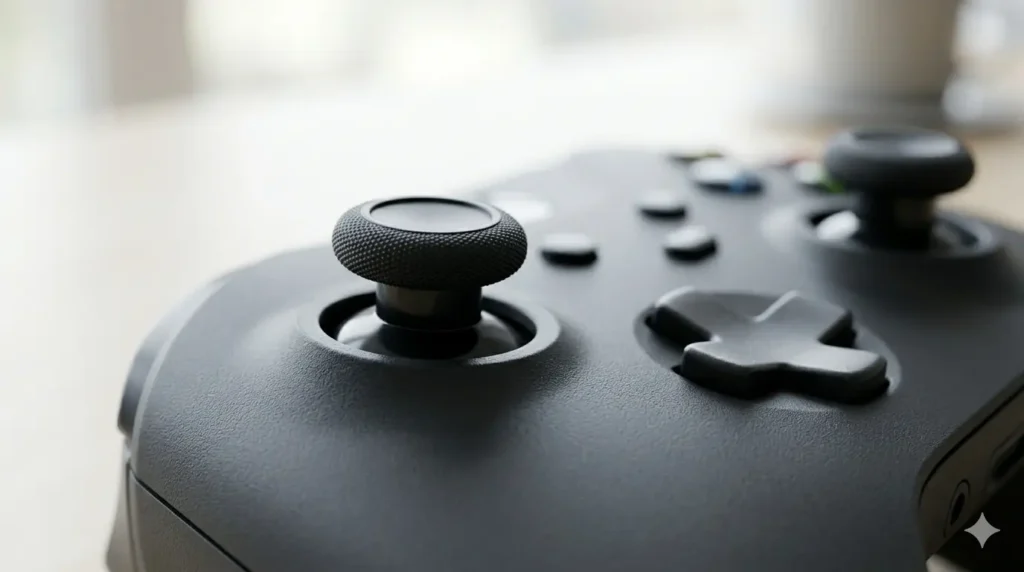
Slowly rotate each stick in a full circle, then push it to each edge (up, down, left, right, and diagonals). On the test page, watch the corresponding stick indicator. If the on-screen marker drifts away from center when you’re not touching the stick, that’s a sign of stick drift — one of the most common Xbox controller issues.
Triggers (LT/RT):
Press each trigger slowly from fully released to fully press. The trigger bars on screen should move smoothly through their entire range, with no jumps, dead zones, or sticking points.
Bumpers (LB/RB):
Press each bumper firmly. These are simple on/off buttons, so they should register instantly with no input lag.
Face Buttons (A, B, X, Y):
Press each button individually and confirm it lights up on the diagram. Double-check for “ghost inputs” — buttons registering presses when you haven’t touched them.
D-Pad:
Press each of the four directions, plus diagonals if your D-pad supports them. Worn D-pads often have trouble registering diagonal inputs.
Menu, View, and Share Buttons:
Don’t forget the smaller buttons — Menu, View, and the Share button (on Series X/S). These are easy to overlook but commonly develop issues over time.
Vibration/Rumble Motors:
If the test tool includes a vibration test, trigger it and feel for both the main motors and the trigger-specific rumble motors (on Series X/S controllers with Impulse Triggers).
Common Xbox Controller Problems and What They Mean
- Stick drift – the analog stick reports movement even at rest, usually caused by worn potentiometers or debris under the stick module
- Trigger dead zones – the trigger doesn’t register input until partially pressed, often due to wear in the trigger’s resistive sensor
- Unresponsive buttons – a button doesn’t register at all, which can point to a worn membrane or dirty contacts
- Input lag – noticeable delay between pressing a button and seeing it register, which can be a wireless interference issue or a hardware fault
- Controller not detected – usually a connection issue (cable, Bluetooth pairing, or driver problem) rather than a hardware fault
Troubleshooting: Controller Not Detected or Acting Up
If your controller doesn’t show up or behaves erratically during testing, try these steps:
- Try a different USB cable – many cheap or charge-only cables don’t support data transfer
- Plug into a different USB port – some USB hubs cause connectivity issues
- Update your controller’s firmware via the Xbox Accessories app on Windows
- Re-pair via Bluetooth – remove the device and pair again from scratch
- Restart your browser – refresh the page after connecting the controller
- Try a different browser – Chrome and Edge generally have the most reliable Gamepad API support
Frequently Asked Questions
Final Thoughts
Testing your Xbox controller online takes less than five minutes and can save you from misdiagnosing — or missing — hardware issue. Whether you’re checking for stick drift, verifying a used controller before buying it, or just want peace of mind that everything’s working, head over to MyGamepadTest.com, connect your controller, and run through every input.