
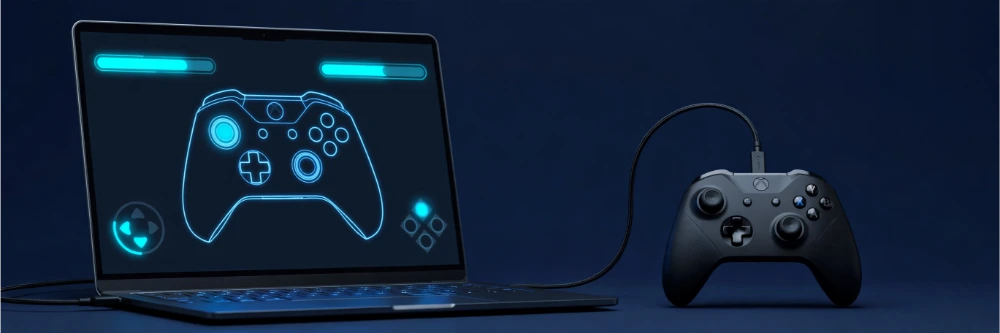
Xbox controller on PC testing is easy — connect your controller, open the tester in your browser, and check every button, stick, trigger and vibration motor in under 5 minutes. No software to download, and it works on Windows 10 and 11 with Xbox One, Series X|S, Elite and 360 controllers.
Step 1 — Connect your controller
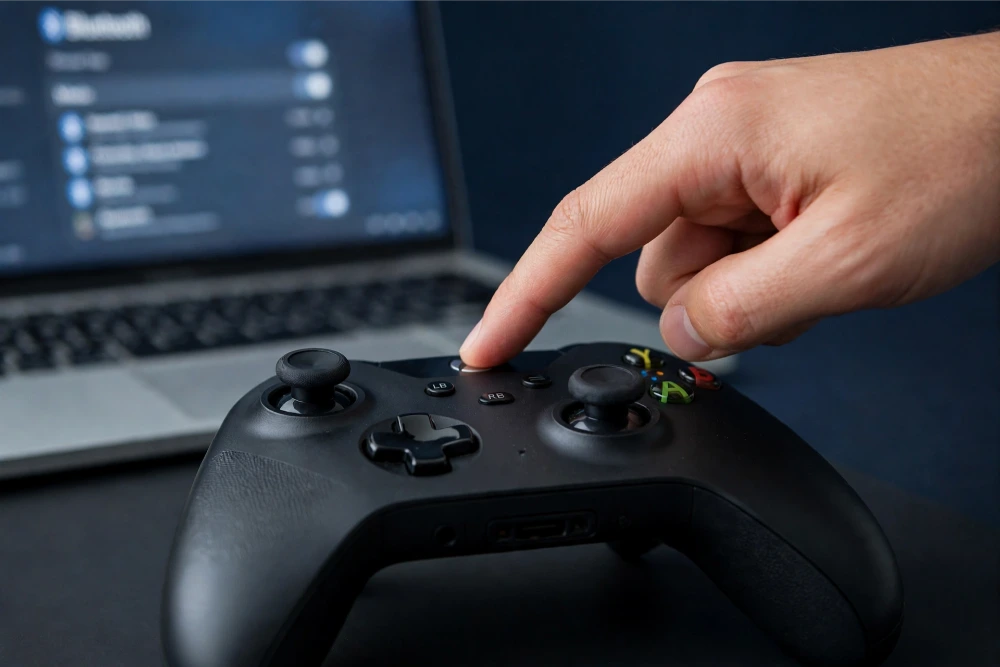
Connect with a USB cable (best for testing), or pair over Bluetooth: hold the Pair button on top of the controller until the Xbox light flashes, then add it in Windows Settings > Bluetooth & devices. A wired connection is more reliable — if a button seems dead on Bluetooth, try USB first.
Step 2 — Open the Xbox Controller Tester
Open the Xbox Controller Tester in Chrome or Edge. Press any button on the controller first — the browser only sees the controller after you wake it up. If nothing shows, close Steam (it can grab the controller), then refresh the page.
Step 3 — Test every button
Press each button one by one — A, B, X, Y, bumpers, triggers, D-pad, Start, Select, and the stick clicks. Each one should light up on screen as you press it. A button that only works sometimes, or needs a hard press, is wearing out.
Step 4 — Test the sticks
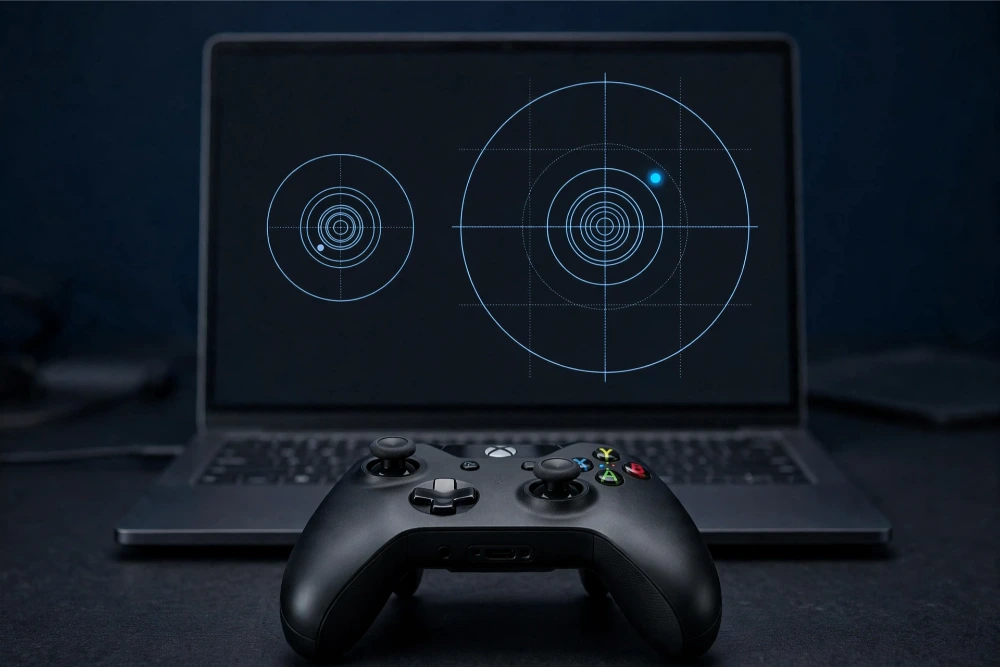
Move each stick slowly in a full circle. Watch for dead spots, jumps, or the stick not reaching the edges. Then let go — if the dot keeps moving on its own, that is stick drift. Run the Stick Drift Test to measure it properly.
Step 5 — Test triggers and vibration
Pull each trigger slowly from 0 to 100% — the value should rise smoothly, not jump. Then run the vibration test: left motor, right motor, then both together. A weak or uneven rumble means a motor is failing.
Step 6 — If the controller is not detected
Try these in order: press a button to wake it, use a different USB cable and port, close Steam and other game apps, try Chrome or Edge, and update the controller firmware in the Xbox Accessories app on Windows.
Ending
Once everything passes, your controller is good to play on PC. If you found drift, a dead button, or a weak motor, retest after trying the fixes above — and if you want the full step-by-step for Xbox controllers, read How to Test Xbox Controller Online.
Can I test an Xbox controller on PC without downloading anything?
Yes. Connect the controller, open the Xbox Controller Tester in Chrome or Edge, and test buttons, sticks, triggers and vibration right in your browser — no download needed.
Does this work with Xbox One, Series X|S and Elite controllers?
Yes. It works with Xbox One, Series X|S, Elite (Series 1 and 2) and Xbox 360 controllers, wired or over Bluetooth, on Windows 10 and 11.
Why is my Xbox controller not detected on PC?
Usually the controller is asleep (press any button first), Steam has grabbed it (close Steam), or the cable is charge-only. Try a different USB cable and port, then refresh the page in Chrome or Edge.
How do I test for stick drift on PC?
Move the stick in a full circle, then let go. If the on-screen dot keeps moving with your hands off, that is drift. Use the Stick Drift Test to measure how bad it is.
Can I test Xbox controller vibration on PC?
Yes. Run the vibration test in the tester — it checks the left and right motors separately, then together. Weak or uneven rumble means a motor is failing.
Testing takes less than five minutes once the controller is connected, and you can retest it any time after a firmware update, a new cable, or a repair. If you play on PC every day, test the controller once a month — a small problem caught early, like a weak trigger or a drifting stick, is much cheaper to fix than a controller that stops working in the middle of a game.