
PS5 controller stick drift means your character or camera moves on its own, even when you are not touching the stick. It is usually caused by dust, a worn stick, or a software glitch — and most of the time you can fix it at home without opening the controller. Work through the 7 fixes below in order, and test after each one.
Step 1 — Test it first (2 minutes)
Before you fix PS5 controller stick drift, confirm it is really drift. Connect your PS5 controller to your PC with a USB cable, open the Stick Drift Test, and watch the stick position with your hands off the controller. If the dot moves on its own, it is drift. If it only feels uneven or jumps when you move it, that is a deadzone problem instead — use the Joystick Test.
Step 2 — Clean around the sticks
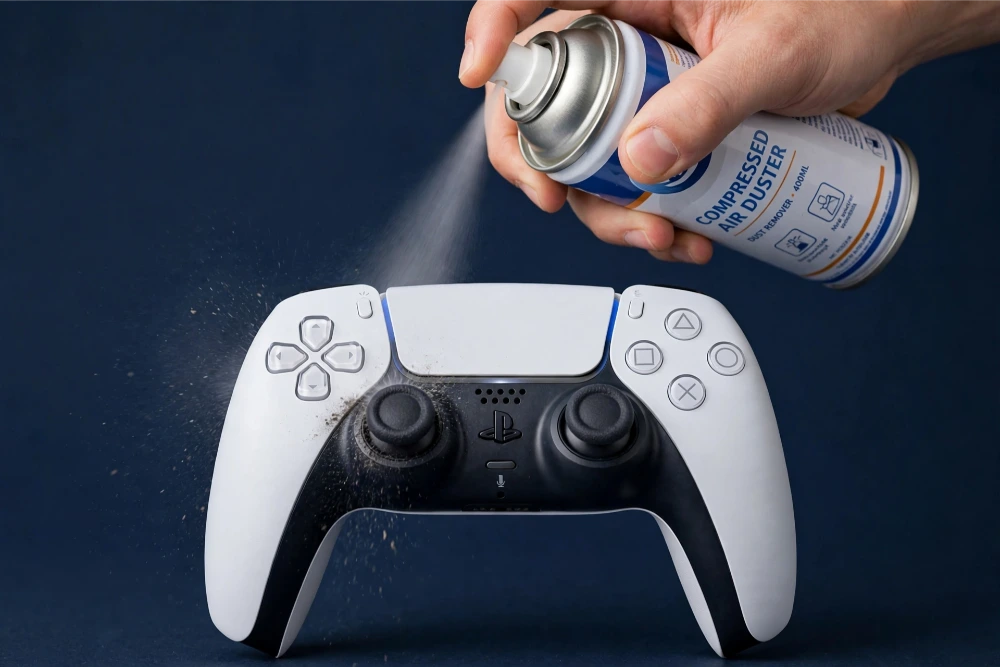
Turn the controller off. Blow compressed air around the base of the drifting stick while you gently move it in circles. Then wipe around it with a dry cloth. Dust is the most common cause of drift, and this alone fixes a lot of controllers. Test again.
Step 3 — Reset the controller
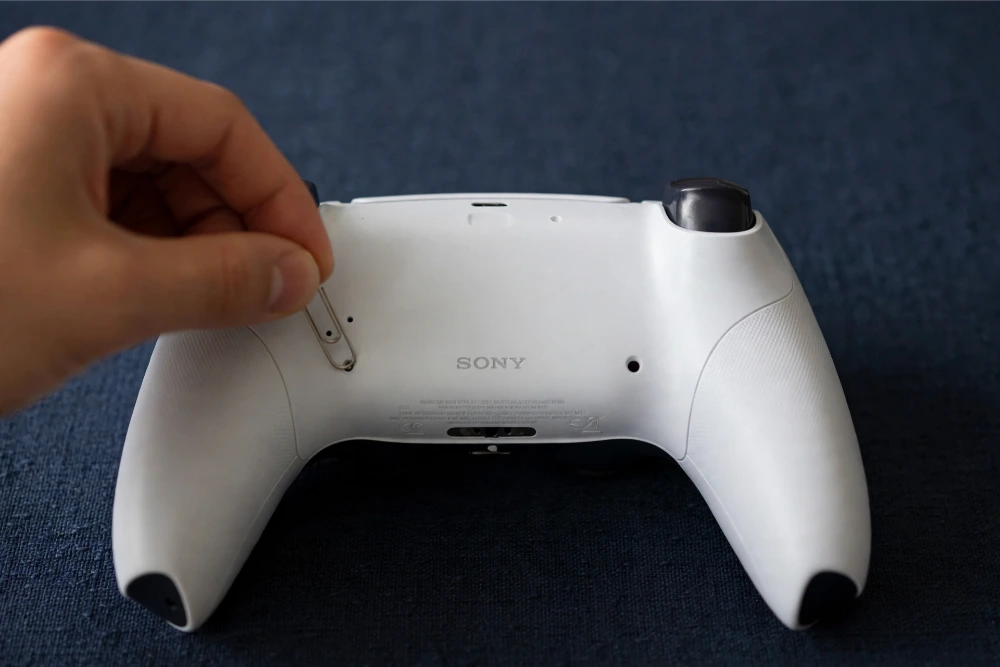
Find the small hole on the back of the controller, near the L2 button. Push a paperclip into it and hold for 5 seconds. Then connect the controller to the PS5 with a USB cable and press the PS button to pair it again. Test again.
Step 4 — Update the controller and PS5
Go to Settings > Accessories > Controller on your PS5 and check for a controller software update. Also check Settings > System > System Software Update. Old firmware can cause stick glitches. Test again.
Step 5 — Increase the deadzone in your game
If the drift is small, open the game’s settings and raise the stick deadzone a little (try 0.10–0.15). This tells the game to ignore tiny unwanted movements. This is a workaround, not a repair — but it makes the controller playable again.
Step 6 — Check for interference
Move away from other Bluetooth devices, and try playing wired with a USB cable. If the drift stops when wired, wireless interference or a weak Bluetooth connection was the problem.
Step 7 — If nothing worked, it is hardware
If the stick still drifts after steps 1–6, the stick module itself is worn out. You can either get the stick module replaced at a repair shop, or contact Sony support if the controller is still under warranty. Do not open the controller yourself if it is under warranty — that voids it.
Ending
Fixed it? Run the Stick Drift Test again to confirm the stick stays still when you let go. If it still moves, work through the steps once more — or try the Joystick Test to check if it is a deadzone problem instead.
Can PS5 stick drift be fixed without opening the controller?
Yes, in most cases. Cleaning, resetting, and updating the controller fix drift caused by dust or software. Only a worn-out stick module needs opening or replacement.
What causes stick drift on a PS5 controller?
Dust under the stick, wear on the stick’s internal parts, a software glitch, or a low battery and wireless interference. Test first to confirm it is drift, not a deadzone problem.
How do I know if my PS5 controller has stick drift?
Connect it to a PC and run the Stick Drift Test. If the stick position moves on its own while you are not touching it, that is drift.
Does increasing deadzone fix stick drift?
It hides small drift by making the game ignore tiny movements, but it does not repair the stick. Use it as a temporary fix while you clean, reset, or update the controller.
How much does it cost to fix PS5 stick drift?
Cleaning and resetting are free. A repair shop usually charges for a stick module replacement, and Sony may fix it free if the controller is still under warranty.