

If your camera drifts on its own or your character keeps wandering in menus, the fastest way to find out whether it’s your DualSense or just a game setting is to run it through an online controller tester. No downloads, no PS5 required — just your browser and your controller.
This guide walks you through testing your PS5 DualSense (and DualSense Edge) online, checking everything from basic button response to stick drift and adaptive triggers, using MyGamepadTest.com, so you know exactly what’s wrong before you replace anything.
Why Test Your PS5 Controller Online:
A two-minute browser test can save you a warranty claim, a wasted repair, or a wasted purchase. It’s worth running when:
- Stick drift check — catching drift early before it wrecks your aim in shooters or your camera control in anything else
- Pre-purchase checks — confirming a used DualSense actually works before you buy it
- Pre-sale checks — proving your controller is fully functional before you list it
- Warranty troubleshooting — getting objective proof of a hardware fault before contacting PlayStation support
- General diagnostics — figuring out why a controller feels laggy, unresponsive, or “off” without being able to pin down why
What You’ll Need:
- A PS5 DualSense or DualSense Edge controller
- A computer with a modern browser — Chrome or Edge give the most reliable results
- A USB-C data cable, or Bluetooth if you’re testing wirelessly
One thing to check before you start: a lot of USB-C cables — including many bundled with phone chargers and charging docks — are charge-only and carry no data. If your DualSense charges but never gets detected, this is usually why. The cable that ships with the PS5 console itself is a proper data cable.
How to Connect Your DualSense Controller to Your PC:
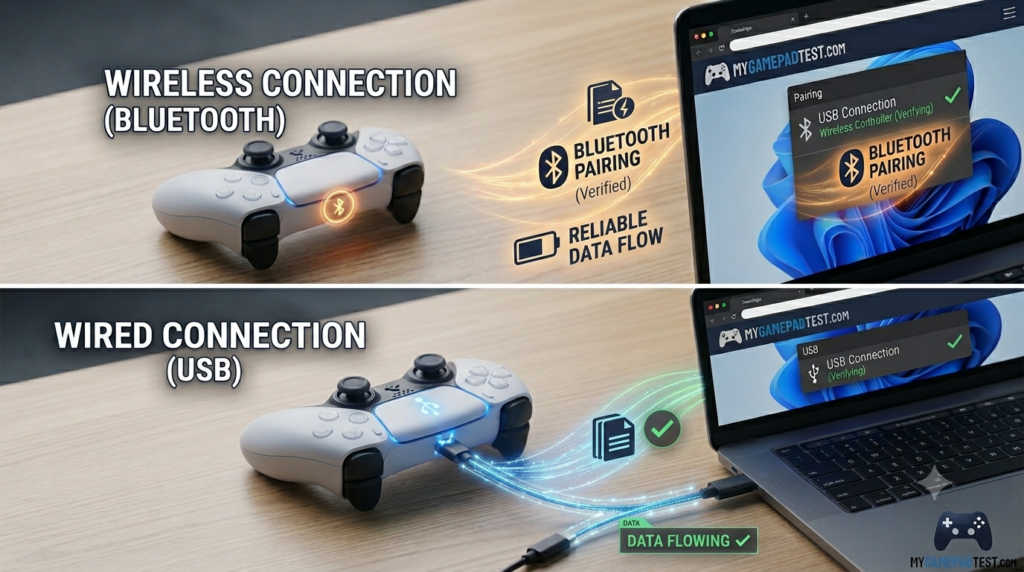
USB-C (Most Reliable)
Plug the controller directly into a USB port on your computer using a USB-C data cable. This is the most stable connection for testing since it removes wireless interference as a variable entirely, and it’s the only way to see accurate battery reporting.
Bluetooth Pairing
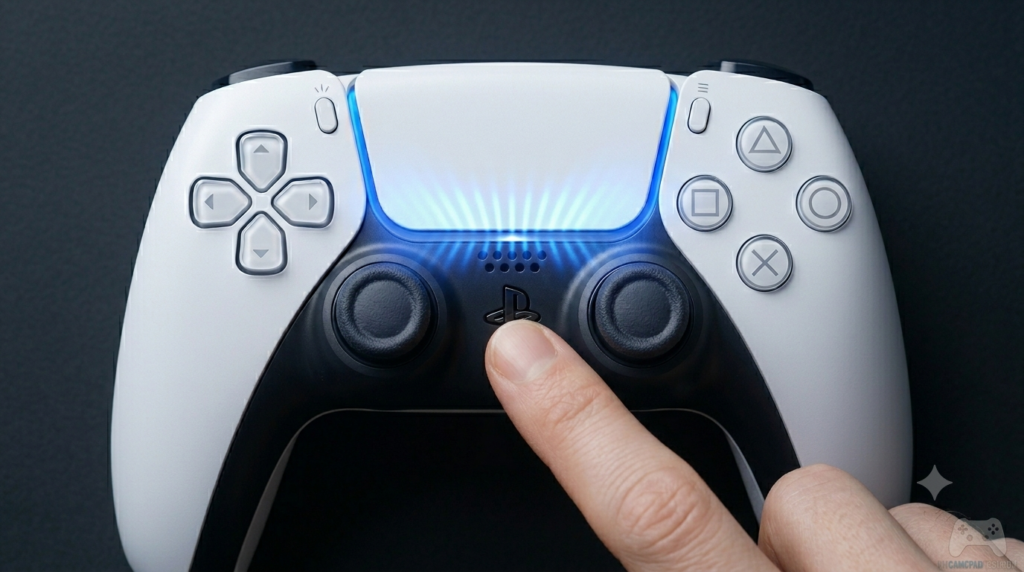
Hold the PS button to turn the controller on, then hold PS + Create together until the light bar starts flashing rapidly. Open your computer’s Bluetooth settings, select “Add device,” and pair with the controller. Note that your browser may not label it “DualSense” — it often shows up generically as “Wireless Controller.” That’s normal and doesn’t mean anything is wrong.
How to Test PS5 Controller Online: Buttons and Inputs
- Connect your controller using one of the methods above.
- Open your browser and go to the DualSense test page.
- Press any button on the controller — most browsers won’t detect a gamepad until you do.
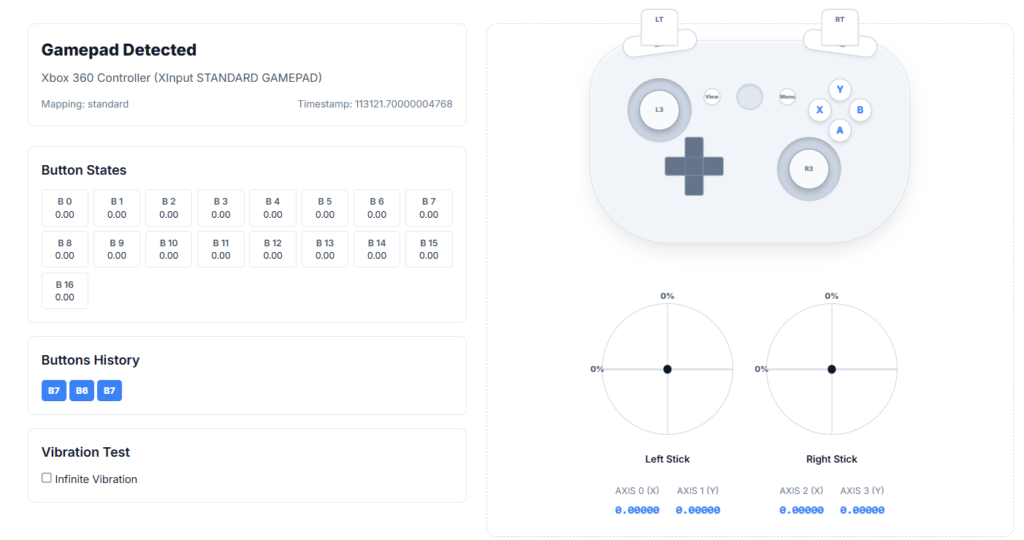
- The page should recognize your controller and show a live input diagram.
- Press and move every input while watching the screen respond in real time.
Go through each of these deliberately rather than just mashing buttons — it’s the only way to catch something subtle:
- Face buttons — Cross, Circle, Square, Triangle
- Create, Options, PS, and Mute buttons
- Touchpad click
- D-pad, including diagonals
- L1 / R1 bumpers
Test PS5 Controller Online for Stick Drift:
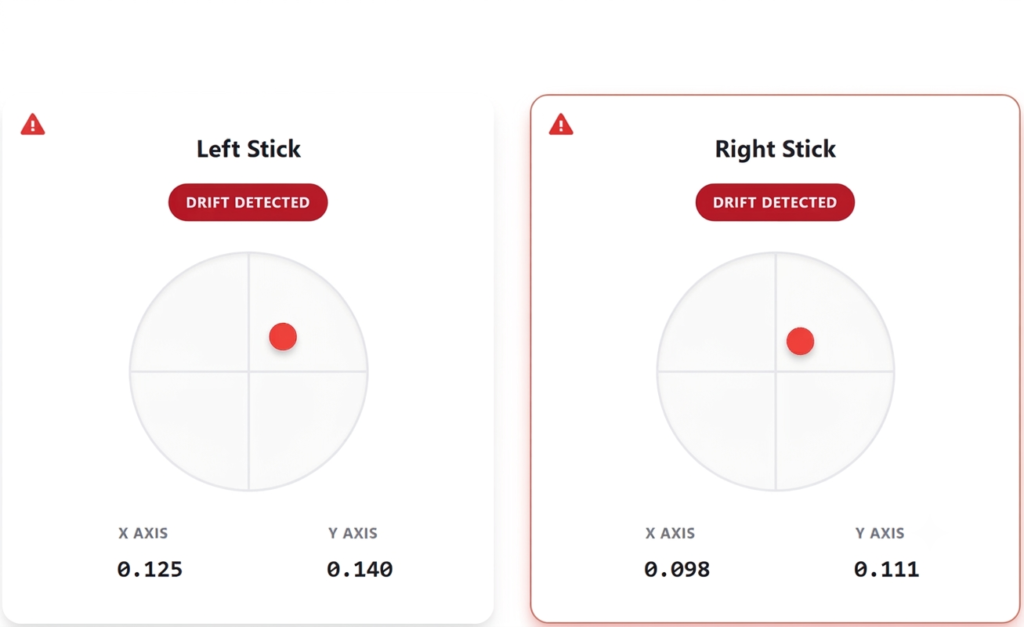
Stick drift is when an analog stick reports movement even though nothing is touching it — usually the first sign something’s wearing out inside the controller, and by far the most common complaint DualSense owners run into.
Here’s how to actually confirm it rather than guess:
- Set the controller down on a flat, still surface.
- Don’t touch either stick for about 5–10 seconds.
- Watch the X and Y axis values on the test page.
A resting value under roughly 0.03 is normal — that’s just sensor noise, every analog stick has a bit of it. Once a stick is consistently reporting above about 0.05 while completely untouched, that’s drift, not noise. Anything in between is worth watching but not necessarily a problem yet.
The usual cause is wear inside the stick’s potentiometer — most DualSense units use ALPS Alpine potentiometers, which are rated for a few million cycles. Heavy use in fast-paced games can burn through that lifespan in well under a year, which is why drift shows up so often on controllers that get used for shooters or racing games.
Testing the Adaptive Triggers (L2/R2):
The adaptive triggers are one of the DualSense’s signature features — motors inside L2 and R2 can add resistance on the fly, which is what makes drawing a bow in a game or braking a car feel physical instead of just being a button.
Worth knowing before you test: a browser can only read the trigger’s pressure value, from 0.0 (released) to 1.0 (fully pressed) — it can’t read or control the adaptive resistance itself, since that’s a haptic output the game sends to the controller, not an input the browser receives. So this test confirms the trigger’s input range is healthy; it won’t tell you whether the resistance motors work. That part can only really be judged in an actual game.
To test the input range:
- Press each trigger slowly from fully released to fully pressed
- Watch the on-screen bar move — it should travel smoothly through the whole range
- Any jump, dead spot, or point where it sticks is worth noting — that points to wear in the trigger’s sensor, not the adaptive motor
Common DualSense Problems and What They Mean:
- Stick drift — the stick reports movement at rest, usually from a worn potentiometer
- Trigger dead zones — the trigger doesn’t register until it’s partway pressed, often from sensor wear
- Unresponsive buttons or ghost inputs — a button doesn’t register, or registers when you haven’t touched it, which usually points to a worn contact
- Touchpad not registering — can be a firmware issue or a hardware fault in the touchpad’s click mechanism
- Battery not showing over Bluetooth — this is expected. The DualSense generally only reports battery level reliably over USB on Windows, not Bluetooth
Troubleshooting: DualSense Not Detected or Acting Up:
- Try a different USB-C cable — many are charge-only and don’t carry data.
- Plug directly into a port on your computer rather than through a USB hub.
- Reset the controller using the small recessed button on the back, near the Sony logo — hold it for 3–5 seconds with a paperclip or similar.
- Remove the old Bluetooth pairing from your computer entirely and pair again from scratch.
- Switch browsers if you’re on Safari — Chrome and Edge have the most reliable Gamepad API support.
Frequently Asked Questions
Final Thoughts:
Testing your DualSense online takes a few minutes and settles the question for good — hardware fault or something else. Whether you’re chasing down stick drift, checking a used controller before buying it, or just want peace of mind, head over to MyGamepadTest.com, connect your controller, and run through every input.