

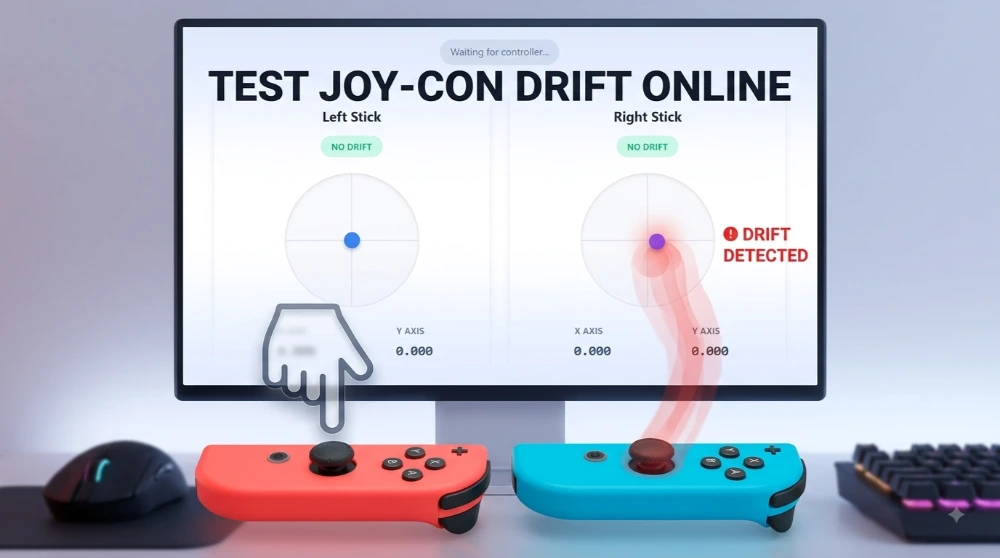
Is your character moving on the screen even when you’re not touching the stick? That annoying problem is called Joy-Con drift, and it’s one of the most common issues Nintendo Switch players face. The good news? You don’t need to open your Switch settings or send your controller anywhere. You can test Joy-Con drift online in your browser in less than a minute — completely free, with no download. This guide shows you exactly how, step by step, and works for both the left and right Joy-Con as well as the Switch Pro Controller.
What Is Joy-Con Drift?
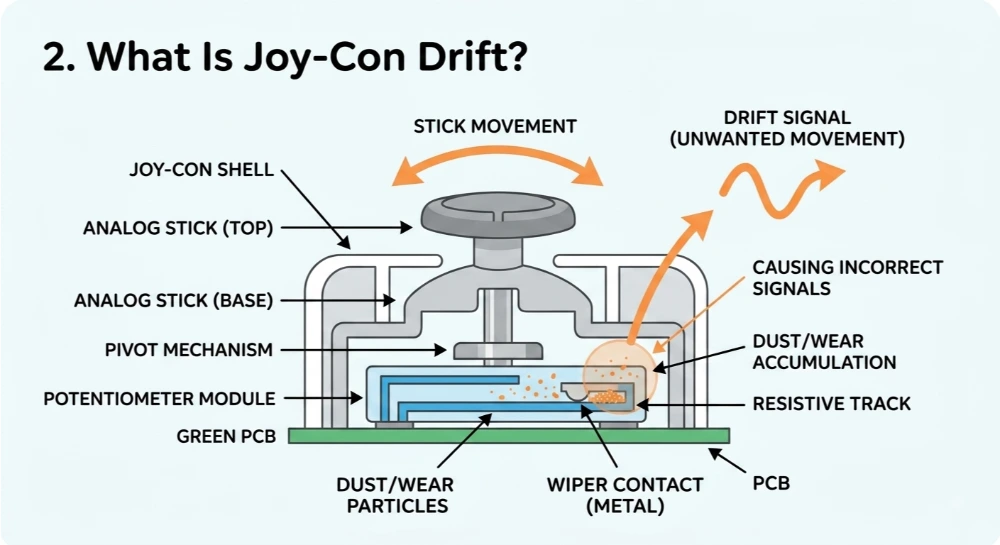
Joy-Con drift happens when the analog stick sends movement signals to your game even though you’re not touching it. In simple words: your character walks, runs, or turns on its own.
Inside every Joy-Con is a small part called a potentiometer. It tracks the exact position of the stick. Over time, this part wears down — often because of dust, dirt, or just normal use. When it wears out, the stick stops returning to its true center point, and that’s what causes drift.
This problem is so common that it even led to a well-known class-action lawsuit against Nintendo. If your Joy-Con feels like it has a “mind of its own,” drift is almost always the reason.
Left vs Right Joy-Con — Which One Drifts More?
In most player reports, the left Joy-Con drifts more often than the right one. That’s because the left stick controls movement in most games (walking, running, dodging), so it gets used far more than the right stick, which mostly controls the camera. More use means faster wear on the internal parts.
How to Test Joy-Con Drift Online (Step-by-Step)
Here’s the simplest way to check your Joy-Con for drift, right from your browser.
Step 1: Connect Your Joy-Con
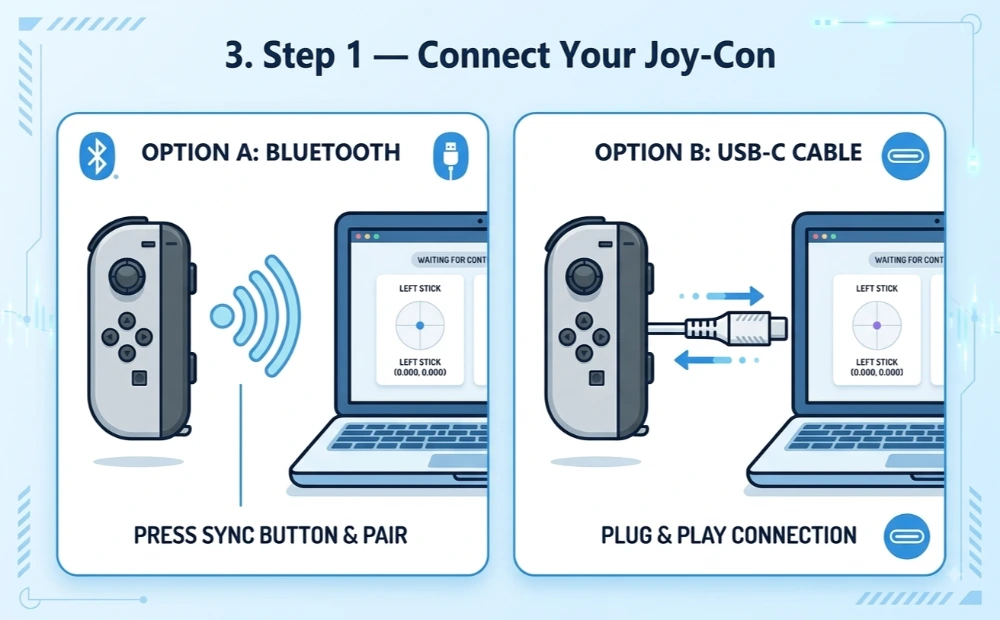
You can connect your Joy-Con to your computer in two ways:
- Bluetooth: Put your Joy-Con in pairing mode and connect it through your computer’s Bluetooth settings.
- USB-C: Plug it in using a USB-C cable or through the Joy-Con grip/dock.
Use Chrome or Edge for the best results. Safari has limited support for controller testing.
Step 2: Open the Joy-Con Drift Tester
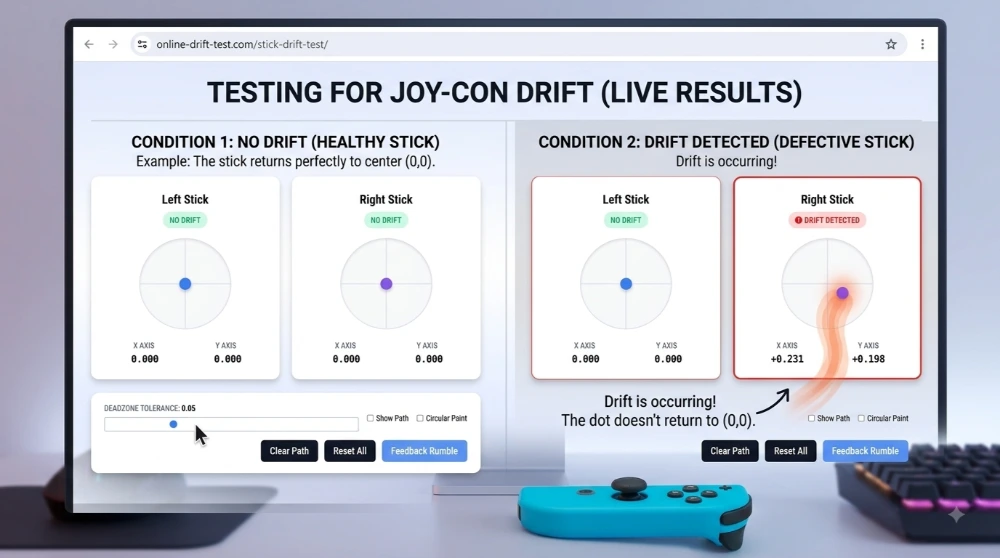
Head over to our Stick Drift Test tool. Once your Joy-Con is connected, press any button on it. Browsers need this button press before they’ll detect a controller — it’s a privacy rule, not a bug.
Step 3: Read the Drift Result
Once detected, you’ll see a live visual of your stick’s position. Here’s what to do:
- Let go of the stick completely and leave it untouched.
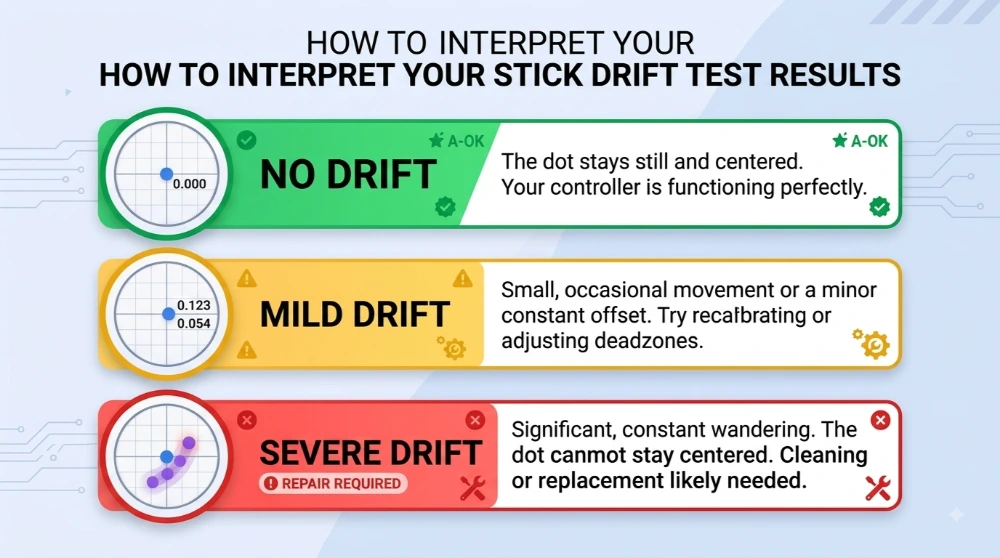
- Watch the dot on the screen. It should sit still at the exact center (0,0).
- If the dot moves, wobbles, or sits off-center on its own — that’s drift.
The tool also shows a drift severity rating:
- None — stick stays centered, no drift
- Mild — small, occasional movement
- Severe — stick clearly wanders while at rest
Common Reasons Joy-Con Doesn’t Get Detected
If your Joy-Con isn’t showing up in the tester, try these fixes:
- Check the connection. Make sure it’s properly paired via Bluetooth or securely plugged in via USB-C.
- Press a button first. The browser won’t detect a controller until you press something on it.
- Switch browsers. Chrome and Edge work best. Safari often has trouble with controller detection.
Charge it. A low battery can cause connection or detection issues on wireless Joy-Con.
Quick Fixes If Drift Is Detected
Quick Fixes If Drift Is Detected
If your test shows drift, here are a few things you can try right away:
- Recalibrate through Switch System Settings > Controllers and Sensors > Calibrate Control Sticks.
- Clean gently around the base of the stick using a soft brush or a small amount of contact cleaner.
- Adjust the dead zone in your game settings to reduce minor drift’s effect on gameplay.
- Consider repair or replacement if drift is severe — either through Nintendo’s repair program or a third-party Hall Effect stick module, which resists drift much better than the original part.
Joy-Con vs Switch Pro Controller Drift — Any Difference?
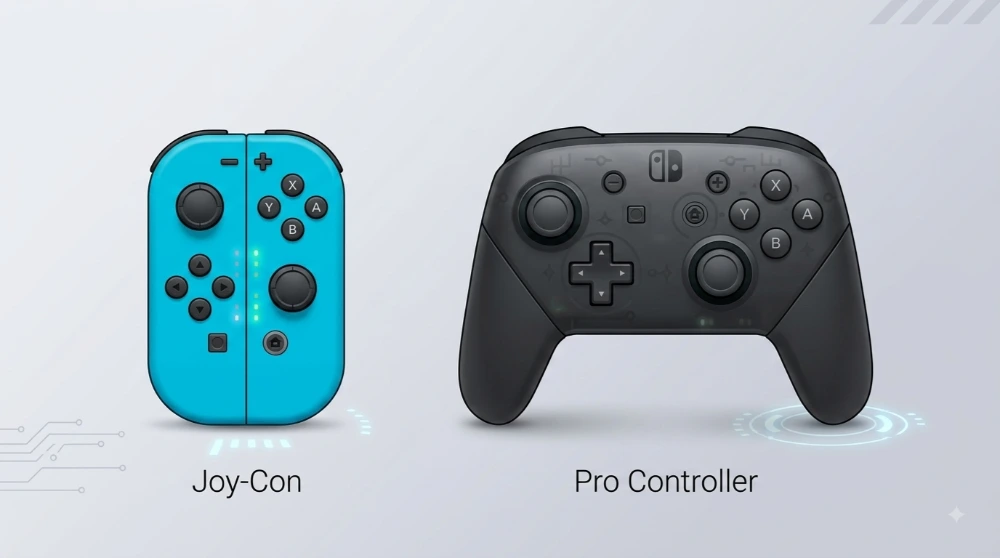
The Switch Pro Controller tends to drift far less often than Joy-Con. It uses a sturdier stick module and gets less wear per hour of use compared to the smaller Joy-Con sticks. That said, if you want to check your Pro Controller too, you can use the exact same online drift test — just connect it the same way.
Why Test Your Joy-Con Online Instead of Using Switch Settings?
Nintendo’s built-in calibration tool works, but testing online has real advantages:
- Faster — no need to detach your Joy-Con from the console or dig through menus.
- More precise — you get an actual visual reading of stick position, not just a simple plus-sign indicator.
- Works without a Switch — useful if you’re buying a used Joy-Con and want to test it on a PC first.
- Private and safe — everything runs locally in your browser. Nothing is uploaded, and no personal data is collected.
Frequently Asked Questions
Final Thoughts
Testing your Joy-Con for drift only takes a minute, and catching it early can save you from frustrating gameplay later. Run the test regularly, especially if you’ve noticed your character moving on its own.
👉 Test your Joy-Con for drift now
Want to check a different controller? See our guides for testing an Xbox controller online or testing a PS5 DualSense controller online.